Facebook Ads for a $4.99 Course on Systeme.io
The full setup: pixel, purchase tracking, AI-generated ads, and the campaign build inside Meta.
You already have the course, the funnel, the sales page, and the emails. This guide covers only what's left: tracking, ad creation, and getting the ads live inside Meta.
(Assumed price: $4.99. If the offer is actually $499, every step is identical. Only the budget maths in Part 9 changes.)
Part 0: The map (read this first, 2 minutes)
Meta needs to know two things to sell your course for you:
- Who visited your funnel (the pixel, a script in your page headers)
- Who bought, and for how much (the Purchase event + the Conversions API)
The pixel runs in the browser, so ad blockers, iOS privacy settings and a closed tab all cost you events. The Conversions API (CAPI) sends the same sale a second way, from Systeme's server straight to Meta, where none of that can interfere. That is why CAPI is worth the twenty minutes: not extra data, more reliable delivery of the data you already have.
The build order:
| Step | Where | What you do |
|---|---|---|
| 1 | Events Manager | Create the pixel |
| 2 | Systeme.io | Paste the pixel onto all funnel pages |
| 3 | Systeme.io | Set the thank-you page event to Purchase |
| 4 | Both | Connect the Conversions API |
| 5 | Events Manager | Test it |
| 6 | Your AI chat | Generate the ads, Prompts 1 to 3 |
| 7 | Ads Manager | Build the campaign |
Part 1: Create the pixel (Meta Events Manager)
- Go to business.facebook.com/events_manager. It redirects to eventsmanager.facebook.com, which is fine. Check the account selector in the top right is on the ad account you want to advertise from.
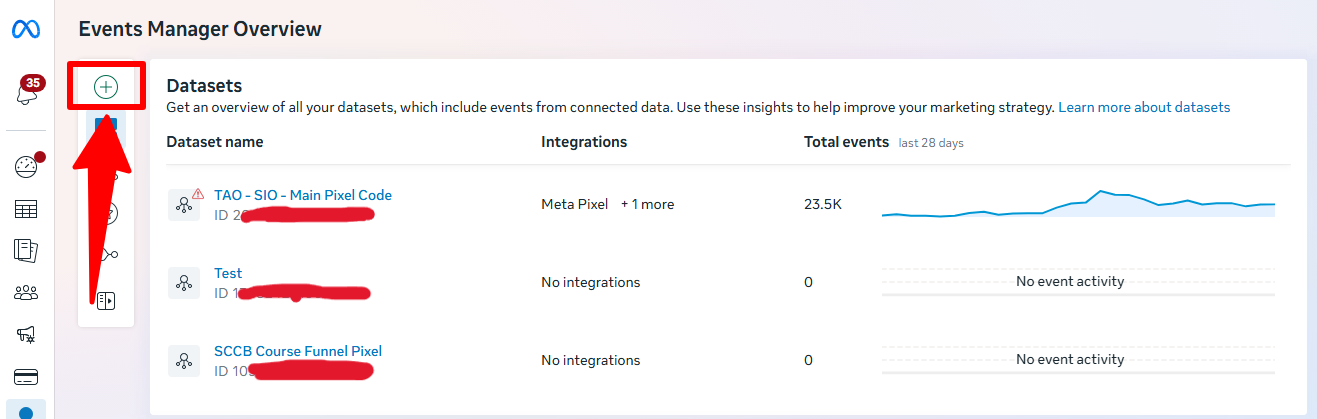
- Click Connect data (top left) to open Connect a new data source. Choose Web, then Next.

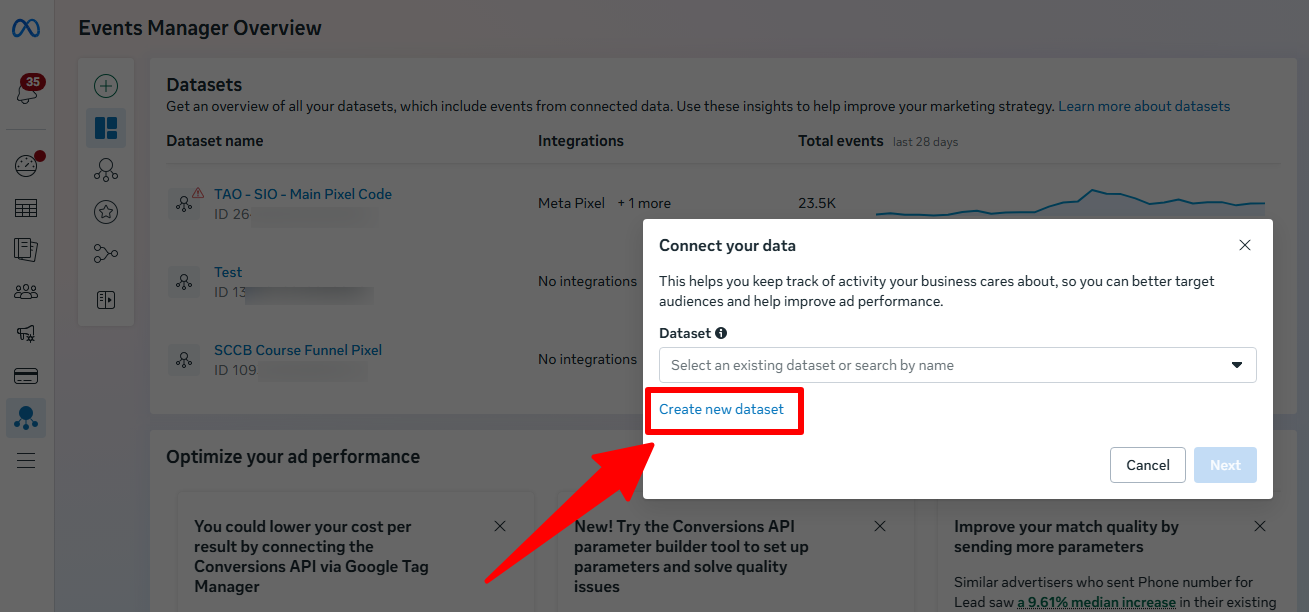
- The next screen, Connect your data, offers a dropdown of existing datasets. Ignore the dropdown and click Create new dataset underneath it.
- Give it a Name. There is also an optional Select any applicable categories dropdown; you can leave it empty. Click Create.

- Choose the ad accounts you want to connect to this dataset. Your current ad account is usually ticked already. Tick any others you will advertise from, then Next. If an account you need is missing, the box says so and links to settings.

- Connect your web data offers Set up Meta Pixel and Set up Conversions API. Leave it on Set up Meta Pixel and click Next. You come back for the Conversions API in Part 4.

- Set up Meta Pixel defaults to Set up Meta Pixel with Google Tag Manager, marked Recommended. You do not want that. Click See other ways to setup, choose Add Meta Pixel code to website yourself, then Next.

- Copy base code. Before you copy anything, read the
fbq('init', '...')line and check the number matches the dataset you just created. See the warning below. Then click Copy code.

- Note your Pixel ID, the long number in that line. You need it again in Part 4.
- The wizard moves to Paste base code, which tells you to put the code between the
<head>and</head>tags of your page. You are pasting into Systeme rather than editing raw HTML, so click Next and let Part 2 handle where it actually goes.

- Optimize setup offers Automatic Advanced Matching. Leave it off for now and click Done.

Check the pixel ID before you copy it. The base code on step 8 can show the ID of a different dataset in the same account rather than the one you just created. Copy that and you install the wrong pixel, and every event lands in the wrong place. The reliable route: close the wizard, go to Datasets in the left menu, click your new dataset, and use the Set up Meta Pixel button on its own page. Same screens, but the code is guaranteed to be that dataset's.
Naming note: the left menu says Datasets. A dataset is what older tutorials call a pixel. The base code is still called the Meta Pixel code.
Once the pixel is done, Meta offers to connect the Conversions API. That is Part 4, and the option you want there is Set up manually, not Google Tag Manager.

Keep this tab open. You come back to it for the CAPI token and for testing.
Part 2: Put the pixel on every funnel page (Systeme.io)
Systeme.io has no "paste your pixel ID" field. You paste the whole code block into a tracking-code box. Two ways:
Option A: whole account at once (recommended)
- Click your profile picture (top right) and choose Settings.
- In the left menu, click Sales funnels.
- Paste the base code into the Tracking code box. It is a code editor with line numbers, and anything already in there (a Google tag, for example) stays; add yours underneath.
- Click Save, top right. Nothing is stored until you do.
Option B: page by page
- Open the page and click Edit page.
- Click Settings in the top bar of the editor. A panel opens down the left.
- Scroll that panel to the bottom, to the Tracking section.
- Click Edit header code, paste the base code, and click SAVE in that box.
- Click Save in the editor's top bar as well. The box's own save is not enough on its own.
Systeme's own doc is explicit: the pixel goes on all pages of the funnel, sales page AND order page AND thank-you page. Not just the page where the sale happens. Option A handles that in one paste.
Part 3: Tell Systeme which event each page fires
The base pixel only says "someone was here". The Purchase event says "someone bought". In Systeme you do not write any code for this. There is a dropdown.
- Open your funnel and click the Thank You Page step.

- Click Edit page, then Settings in the top bar, then scroll the left panel to Tracking.
- Set Select Facebook event to Purchase.
- Click Save.
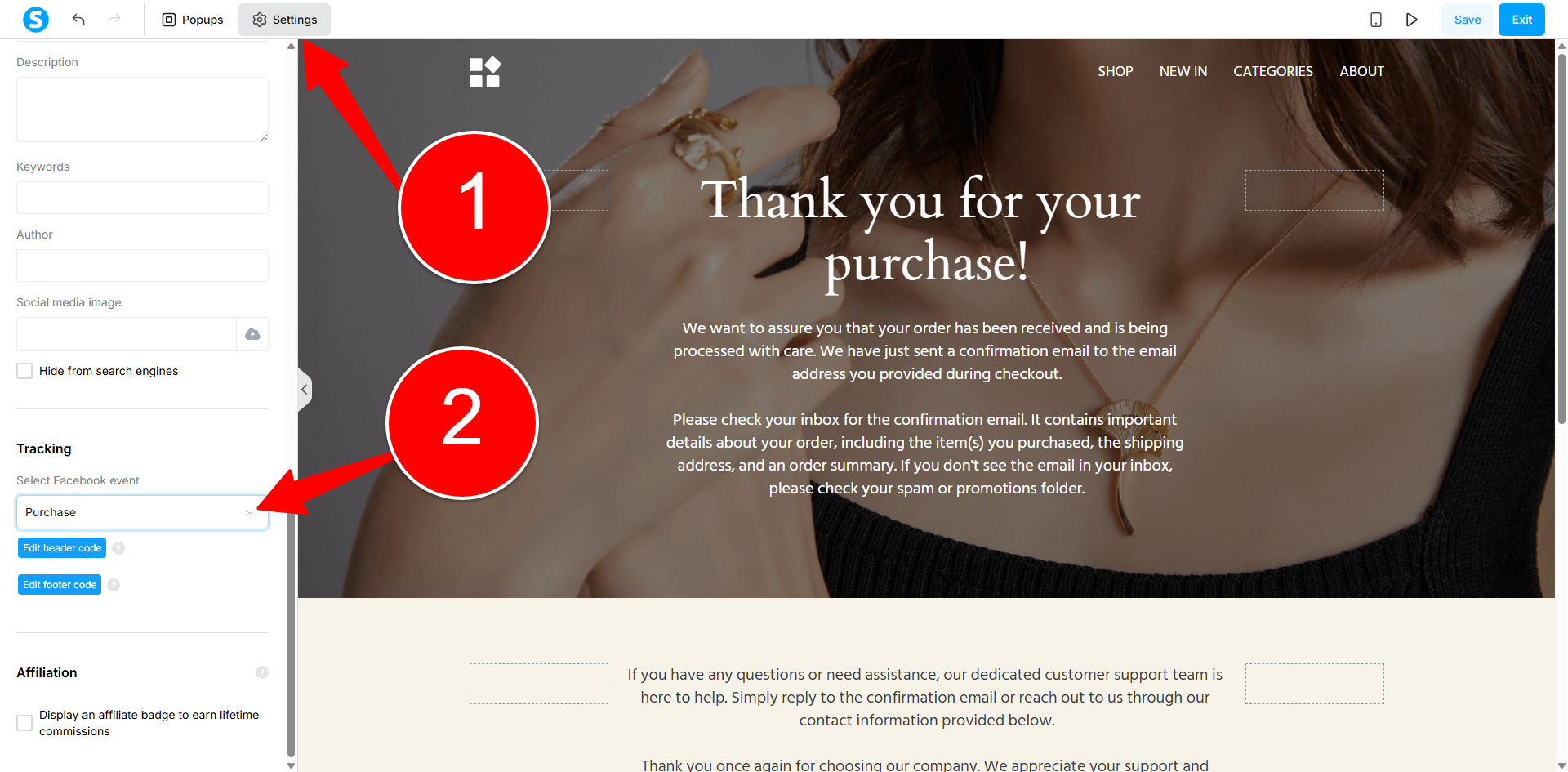
That is the whole step. Systeme sends the Purchase event server-side through the Conversions API once you have connected it in Part 4.
If your funnel has an opt-in page before the sales page, set that page's dropdown to Lead the same way. Leave every other page on None.
Why there is no code here. Systeme's Conversions API doc puts it plainly: "add the corresponding event to every page you would like to track using the Conversions API (this setting is found under Settings when editing the page)". The dropdown is the event.
The optional extra. Everything above is server-side. You can also fire a browser-side copy of the same event, which catches a few people the server misses and vice versa. It is genuinely optional, and skipping it costs you very little. If you want it, add this to the thank-you page's Edit header code, underneath the base pixel:
<script>
  fbq('track', 'Purchase', {}, {eventID: '01M5M2BD6JF6N1B18EFYJ6RCNG_43867349_purchase_process_id_hash_d41d8cd98f00b204e9800998ecf8427e'});
</script>
The 01M5M2BD6JF6N1B18EFYJ6RCNG_43867349_purchase_process_id_hash_d41d8cd98f00b204e9800998ecf8427e placeholder is not a mistake and the empty {} is deliberate. Systeme swaps the placeholder for a real ID at conversion time, and Meta uses that ID to recognise the browser event and the server event as one sale rather than two. Leave both exactly as written, and do not hand-add a value here: the value comes through the Conversions API.
The opt-in page equivalent uses a different placeholder:
<script>
  fbq('track', 'Lead', {}, {eventID: '01M5M2BD6JF6N1B18EFYJ6RCNG_43867349'});
</script>
Skip Meta's point-and-click "event setup tool". Systeme's doc warns it does not always work on their pages.
Part 4: Connect the Conversions API
CAPI sends the sale from Systeme's server straight to Meta, so it survives ad blockers, iOS privacy settings and closed tabs better than the browser pixel. Same event, a second and sturdier route.
Step 1: get the access token (in Events Manager)
Meta has several routes to the same button. This is the short one.
- In Events Manager, click Datasets, select your dataset, and open its Settings tab.
- Scroll to Generate an Access Token, then Set up direct integration.

- Choose Set up with Dataset Quality API (recommended, adds event-match-rate reporting) or Set up without Dataset Quality API. Either works with Systeme.
- Click Generate access token. Tick your dataset in the picker, then Generate access token again.
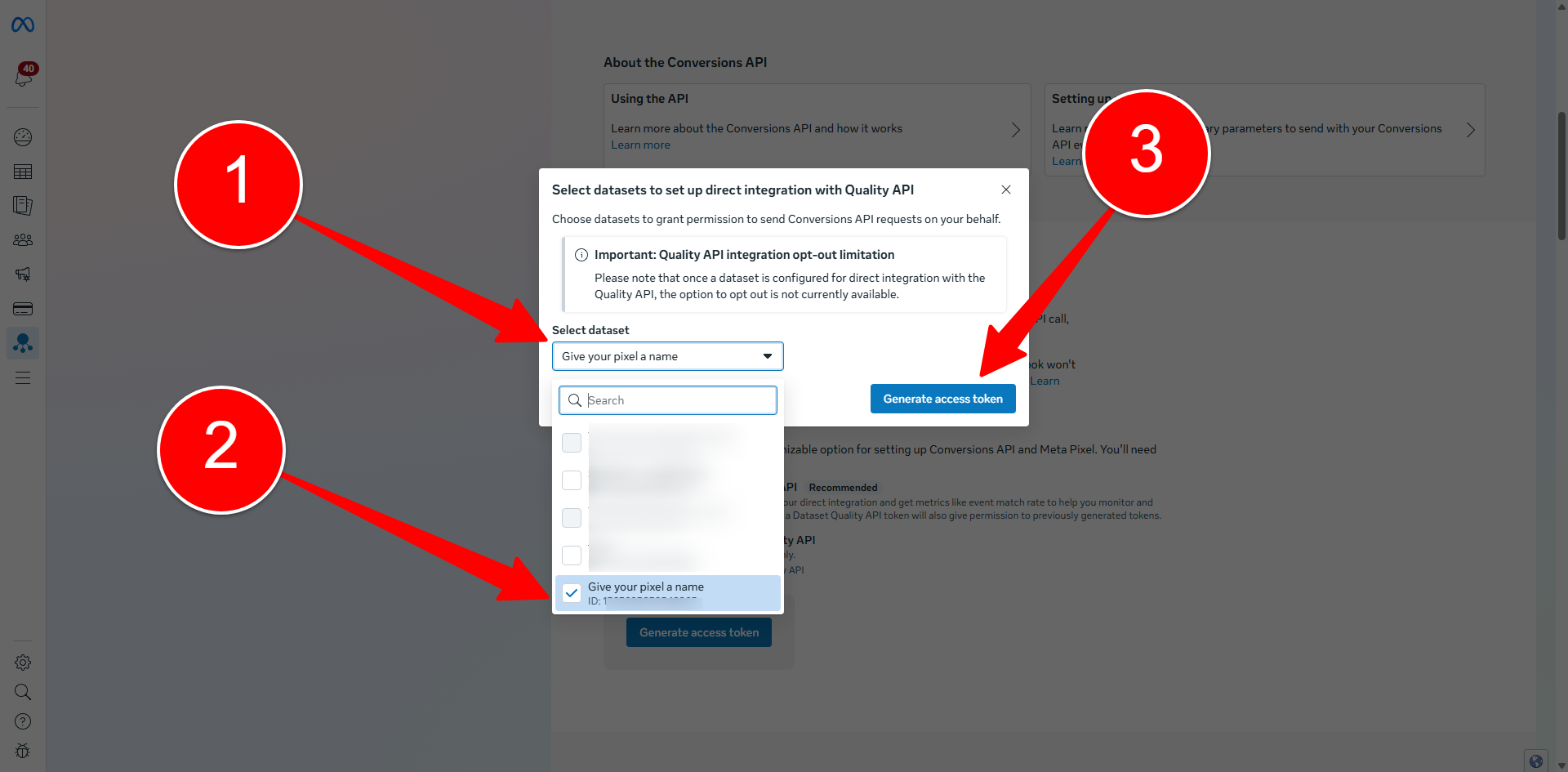
- Copy the whole token. Facebook does not store it. If you lose it you generate a new one.

The Dataset Quality API choice is one-way. Meta's own notice on that screen: once a dataset is configured for direct integration with the Quality API, opting out is not currently available. Pick deliberately.
If Meta sends you the long way round. Starting from the dataset's Overview tab and clicking Set up Conversions API launches a wizard: Recommended setup, then How do you want to connect your website, then Instructions, then a five-stage "Connect activity with Conversions API" flow that asks you to select events and parameters.

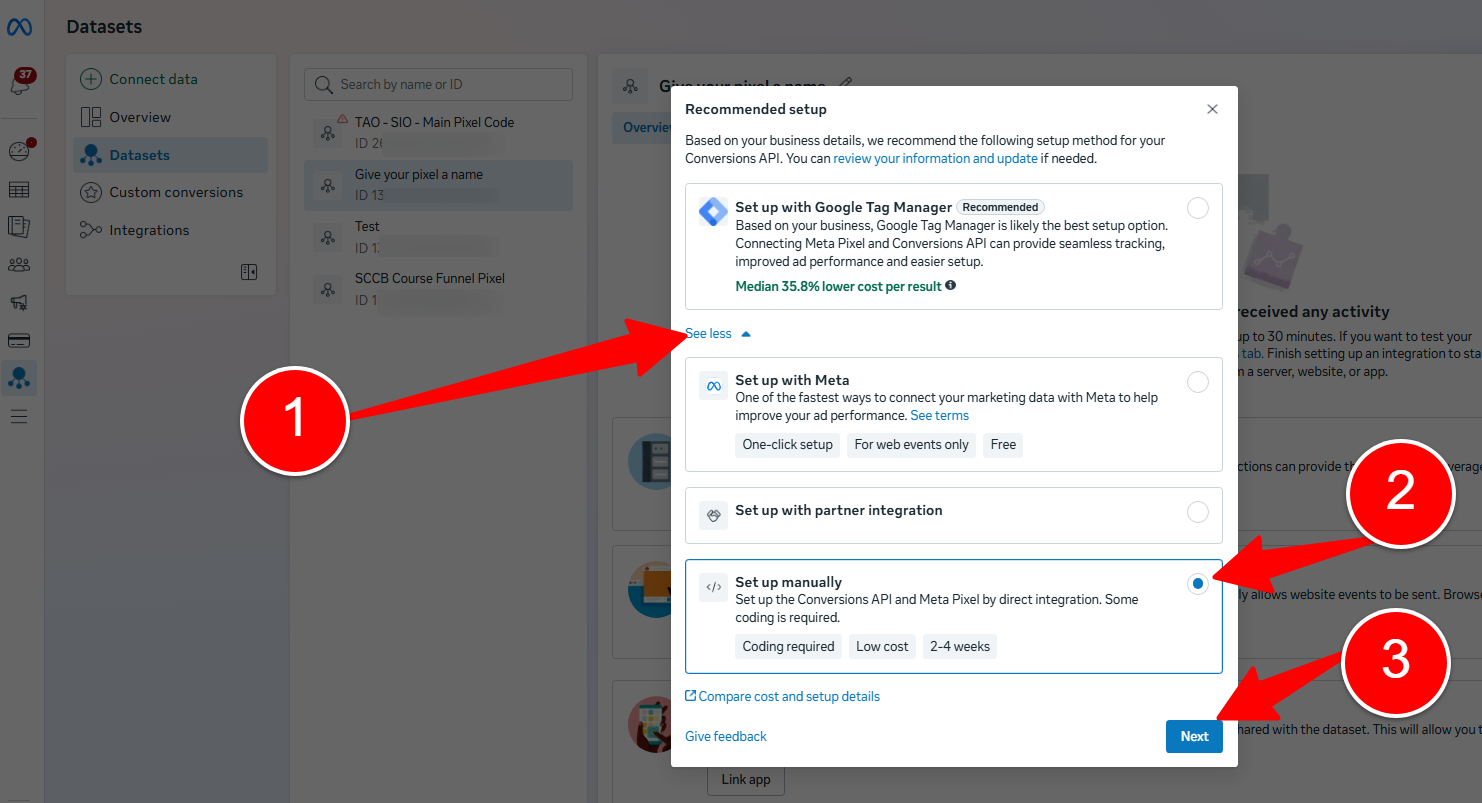

You can ignore all of it. That wizard writes personalised instructions for a developer building their own server integration. Systeme already is your server integration. Every event and parameter screen in there changes nothing about what Systeme sends, which is decided by the per-page dropdown from Part 3. Click through to Generate an Access Token in the left-hand list and you land on the same screen as step 2 above.
Step 2: plug it into Systeme.io
- In Systeme.io: profile picture → Settings → Custom domains.
- Click the three dots next to the domain your funnel serves from, then Settings. (The same menu also has Edit homepage, Edit subdomain name and Mark domain as default.)
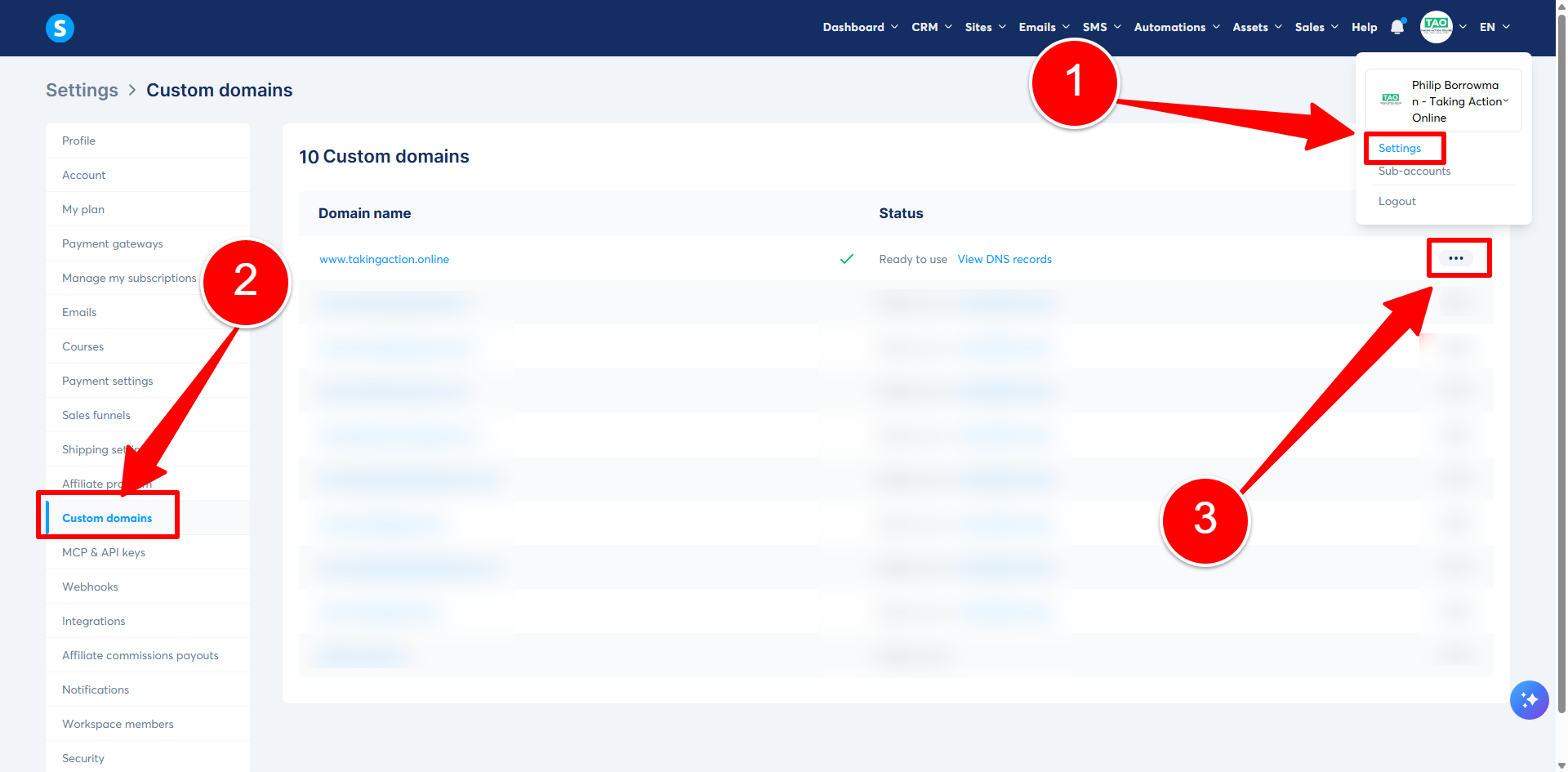
- Scroll the box to the bottom, to Facebook Conversions API.
- Enter your Pixel ID and paste the Access token. There is an App ID field beside them; leave it empty unless you have a Facebook app.

Where your Pixel ID lives. In Events Manager, click Datasets in the left menu. The long number printed under each dataset's name is its Pixel ID. It is the same number you noted in Part 1, and the same one inside the base code on the fbq('init', '...') line. The Click here to view your Facebook Pixel settings link in this box opens Events Manager if you need to go and fetch it.
Paste the whole token. It is one long unbroken string, usually starting EAA and often 200 characters or more, with no spaces, dots or dashes in it. There is nothing to trim and no shorter piece hidden inside it. Length varies between tokens, so a new one being longer than an old one is normal and not a sign anything went wrong.
- Click Save.
The credentials are per domain, not per account. If your funnel serves from a different domain to the one you filled in, the sale never reaches Meta. Check which domain the funnel's pages actually use before you spend anything.
Step 3: attach the event to the thank-you page
- Open the thank-you page, click Edit page, then Settings in the top bar, then scroll the left panel down to the Tracking section.
- The dropdown is labelled Select Facebook event and has exactly five options: None, View content, Purchase, Lead, Schedule. It starts on None. Pick Purchase on the thank-you page.
- Save the page.
- If Meta's Events Manager wizard asked you to pick customer information parameters while you generated the token, select email at minimum; that's what Meta uses to match the buyer to a Facebook account. Systeme's own side needs nothing more than the pixel ID, the token, and the per-page event.
That is CAPI done. Every sale now reaches Meta from Systeme's server. If you also added the optional browser snippet in Part 3, the same sale arrives twice and Meta uses the eventID to count it once.
Part 5: Test before you spend a cent
The test tool is buried, and the results do not appear where you expect.
- In Events Manager, click Datasets, select your dataset, and open the Test events tab.
- The page looks almost empty. Under Select a marketing channel to receive its corresponding instructions there is a Select channel dropdown. Choose Website.
- Two collapsed panels appear. Open Confirm your website's events are set up correctly. The URL box is inside it.
- Type your funnel URL into Enter website URL and click Test Events. Your site opens in a new window.
- Now go back to the Events Manager tab. This is the part everyone misses. The instructions and the URL box are gone, replaced by a live feed headed Waiting for activity with a table of Events Received. Nothing appears in the window that opened; the results are always back on this tab.
- Browse your funnel in the window Meta opened, then look at the Events Manager tab again. PageView rows appear within a few seconds, one per page, each marked Processed.
- Leave the Test Events tab open the whole time. Activity only records while it is open.
Then buy your own course with a real card. Check the Purchase event turns up on the dataset's Overview tab. That is normal reporting rather than the test feed, so give it up to 30 minutes before you decide anything is wrong.
Part 6: Generate the ads with AI (three prompts)
These prompts are built to run in your other chat, the one that already knows the course. They work as a chain: Prompt 1 extracts the course into a source sheet, Prompt 2 writes ads only from that sheet, Prompt 3 turns the winning ads into image prompts. That chain is what keeps the ads congruent with the course and the sales page, and every prompt carries the full Meta compliance rules inside it, so the output lands pre-screened.
Run them in order, in the same conversation.
Prompt 1: extract the course into a source sheet
Build me an AD SOURCE SHEET for the course we have been working on. This sheet
becomes the single source of truth for a Facebook ad campaign, so only include
what is TRUE and verifiable from what you know about the course. Nothing invented,
no placeholder stats, no guessed testimonials.

Output exactly these sections:

1. THE BUYER: who this course is for, in plain words. Their situation, what they
   have tried, what they want. Include 5 exact phrases this person would type or
   say about their problem (their words, not marketing words).
2. THE PROMISE: the single transformation the course delivers, in one sentence,
   stated the way the SALES PAGE states it. Also list the sales page headline
   verbatim if you have it.
3. THE MECHANISM: how the course actually gets the buyer there. What's inside,
   what makes the method different from the obvious alternatives.
4. THE PRICE FRAME: it costs $4.99. List 3 honest ways to frame that price
   against things the buyer already pays for.
5. REAL PROOF: only proof that actually exists (numbers of students, years,
   reviews, the creator's real credentials). If a proof point does not exist,
   write NONE. Do not soften this.
6. TOP 5 OBJECTIONS: the reasons this buyer hesitates, each with the honest
   one-sentence answer the course can truthfully give.
7. VOICE: 5 notes on how the creator actually talks (sentence length, attitude,
   words they use, words they would never use).

Keep it under 600 words. This is a working document, not sales copy.
Prompt 2: write the campaign (compliance rules baked in)
Using ONLY the AD SOURCE SHEET above, write me a Facebook ad campaign for the
$4.99 course. Do not introduce any claim, number, or story that is not on the
sheet.

STRUCTURE
- 3 ad sets, each on a different angle: (1) the problem the buyer already knows
  they have, (2) the mechanism (what makes this method different), (3) the
  price/no-brainer frame.
- 3 ads per ad set. For each ad give me:
  - Primary text SHORT (1-2 sentences, first line must work alone)
  - Primary text MEDIUM (3-5 sentences)
  - Primary text LONG (a short first-person story or proof-led paragraph)
  - Headline (aim for 27 characters or fewer, hard cap 40)
  - Description (one line)
  - Suggested CTA button (choose from: Shop now, Learn more, Sign up, Get offer,
    Order now, Download)
- The first line of every ad must make the SAME promise the sales page headline
  makes (section 2 of the sheet). A stranger who clicks must land on a page that
  says what the ad said.

META COMPLIANCE RULES (non-negotiable, apply to ALL THREE text lengths; Meta
reviews the long version just as hard as the short one)
1. PERSONAL ATTRIBUTES: never assert or imply anything about the reader's
   situation. No "Are you struggling with...", no "Tired of being broke?", no
   "you" attached to any hardship, health state, age, or financial status
   ("vulnerable financial status" is a protected attribute in Meta's policy).
   Never use "other" in a way that implies you know what the reader is
   ("meet other creators" fails, "meet creators" passes).
   THE FIX: put every hardship in first person. "I wasted four years on this"
   does the work of "you've been wasting years" and breaks no rule.
2. MONEY CLAIMS: zero income figures, in any variant, even ironic ones, even
   in the long version. No "$X per month", no "get rich", no "turn a small
   investment into...", no guaranteed or risk-free anything, no promised
   outcome attached to a timeframe. Reframe every loss as TIME, not money
   ("it cost me four years", never "it cost me $30,000"). Figures for what
   something COSTS are fine ($4.99 is fine, tool costs are fine). Figures for
   what someone EARNS are not.
3. BANNED VOCABULARY: "actual earnings", "where the money comes from", "how
   you actually make money", "make-money-online", "white label", "reseller
   rights", "solo ads", "secret", "hack", "guaranteed". Words like "scheme" or
   "shortcut" only when disparaging the category ("this is not a get-rich
   scheme"), never describing the offer.
4. NO ENGAGEMENT BAIT OR CLICKBAIT: no "you won't believe", no withholding
   ("the one thing nobody tells you..."), no LIKE/tag/share requests, no
   sentences in all caps, no !!! or ???.
5. HONESTY: every claim traceable to the source sheet. Where the sheet says
   NONE for proof, write no proof claim at all. No invented students, results,
   or reviews.
6. STYLE: grade 8 reading level or lower. Short sentences. No em dashes
   anywhere. Write like a person, not a press release.

Present it as: campaign map first (ad sets + angle + hook type per ad), then
every ad written out in full.
Prompt 3: image prompts for the ads
For each ad above (or the ones I pick), write ONE image concept and its
generation prompt for an AI image tool. Two output sizes per concept: 4:5
(1440x1800, Facebook feed) and 9:16 (1440x2560, Stories/Reels).

CONCEPT RULES
- The image's job is to stop the scroll AND match the ad's first line, so the
  click feels continuous from image to text to sales page.
- Prefer: a real-feeling scene from the buyer's world, a clean object metaphor
  for the mechanism, or a bold short-text card in the course's brand colours.
- On-image text: keep it minimal (one short phrase max). There is no 20% text
  rule anymore, but text competes with the primary text and gets reviewed as
  ad copy, so the same compliance rules apply to every word ON the image.

IMAGE COMPLIANCE RULES (Meta reviews the image as hard as the text)
1. NO fake user-interface elements: no play buttons, no checkboxes, no poll
   or notification mockups, nothing that looks clickable but isn't.
2. NO income imagery: no cash stacks, no money raining, no revenue dashboards,
   no earnings screenshots (blurred numbers still read as an earnings claim).
3. NO before/after framing of any kind.
4. NO website URL, domain, or handle anywhere on the image. The link lives in
   the ad's destination field; a URL on the creative kills tracking.
5. NO real person's likeness unless we own the photo rights, and no celebrity
   lookalikes. No Meta/Facebook/Instagram logos.
6. For 9:16: keep the top 14%, bottom 35%, and 6% each side free of text and
   key elements (Meta's interface covers those zones).
7. Photorealistic humans in AI images are allowed (Meta labels AI content
   automatically, no disclosure needed for a normal product ad), but if in
   doubt, prefer scenes, objects, or text cards over fake humans.

For each concept give me: the concept in one sentence, the full generation
prompt (including style, lighting, composition, and the exact on-image text if
any), and which ad it belongs to.
Part 7: Make the images
Take the prompts from Prompt 3 to any image model.
Specs that matter (from Meta's current ads guide):
| Placement | Ratio | Resolution | Format |
|---|---|---|---|
| Facebook Feed | 4:5 | 1440 x 1800 | JPG/PNG, max 30 MB |
| Stories / Reels | 9:16 | 1440 x 2560 | JPG/PNG, max 30 MB |
Note the feed recommendation is now 4:5 portrait, not the old 1:1 square most guides still teach. A 4:5 image takes more screen than a square one. You can upload one image and let Meta crop per placement, but a purpose-built 9:16 for Stories beats an auto-crop.
Before uploading, eyeball every image against the compliance list in Prompt 3, especially: no URL crept onto the image, no garbled AI text, no fake UI.
Part 8: Build the campaign in Ads Manager
Ads Manager changed in the last year: "Advantage+ shopping campaigns" no longer exist as a separate type. Choosing the Sales objective now gives you one flow with Advantage+ ON by default, and Meta's own data says leaving it on performs better for exactly this kind of broad, low-ticket offer. The build below leaves it on.
Campaign level
- Go to Ads Manager → click + Create (top left).
- Buying type: Auction. Objective: Sales → Continue. (You'll see "Advantage+ on" in the top right. Leave it.)
- Name it. Convention:
[Course] - $4.99 - Sales - 2026-08. - Budget: choose Campaign budget (this is Advantage+ campaign budget, the old CBO) → Daily budget → enter your number (Part 9 tells you how to pick it).
- Special Ad Category: leave it unselected. A course is not a financial product. But read Part 10 before your first rejection, because Meta's classifier disagrees sometimes.
- Click Next.
Ad set level
- Conversion location: Website.
- Performance goal: Maximise number of conversions.
- Pixel: select the pixel from Part 1. Conversion event: Purchase. (It may warn the event is low-volume at first. That's fine, it fills as sales come in.)
- Audience: shows "Advantage+ on". Set Location to the countries you sell to. Optionally open Show more controls for a minimum age. Add interests/custom audiences only under Add suggestions (they steer the AI without capping it). Don't tick the hard-limit options; that switches Advantage+ audience off.
- Placements: leave on Advantage+ (all placements). Your 4:5 and 9:16 images cover the important ones.
- Click Next.
Ad level (repeat per ad)
- Name the ad after its angle and hook, e.g.
problem-angle-hook1. - Identity: pick your Facebook Page and Instagram account.
- Ad setup: Create ad → format Single image or video.
- Set up creative → Image ad → upload the image → fill in Primary text, Headline, Description from Prompt 2's output.
- Website URL: your sales page, with the full
https://www.form. - Call to action: what Prompt 2 suggested (for a $4.99 direct sale, Shop now or Get offer fit).
- Check the Advantage+ creative enhancements list. Turn off any enhancement you don't want Meta applying to your image (it can relight, crop, and add overlays). At minimum, preview what it does before trusting it.
- Use Ad preview to check Feed and Stories placements look right.
- Duplicate the ad for the other variants (the duplicate button copies the ad inside the same ad set), swap in each ad's copy and image.
Start with one ad set of 3 ads (your best angle) rather than all three angles at once. Part 9 explains why: at low budgets, three ad sets starve each other.
Publish
- Click Publish (bottom right). First campaign on a fresh ad account: it will ask for payment details before going live.
- Ads enter In review. Most clear within 24 hours, usually faster. Status moves to Active when approved.
- Don't edit while in review. Every edit to creative, targeting, or optimisation restarts the review (bid, budget, and schedule changes don't).
Part 9: Budget and the low-ticket reality check
This part is strategy, not doc-verified fact. Marked so you know which is which.
What Meta's docs do say:
- There is no published fixed minimum budget anymore. Ads Manager alerts you if your budget is below the dynamic minimum for your country and settings.
- An ad set exits the learning phase after roughly 50 conversions in a week. Under that pace it goes "Learning limited" and never optimises properly.
- Purchase optimisation needs more budget than cheaper goals like landing-page views.
The maths for a $4.99 front-end (advice, not doctrine): 50 purchases a week at a realistic $5-15 cost per purchase means $35-100+ per day to feed one ad set properly. Most people won't start there, and that's fine. The honest framing:
- A $4.99 front-end almost never profits on the front end. If cold traffic buys at $8 a sale, the $4.99 loses $3 per customer before bumps, upsells, and the email list. That's normal. Low-ticket offers exist to turn strangers into buyers at roughly breakeven; the money is in what happens after.
- Starting smaller is allowed. At $10-20/day you'll sit in "Learning limited". The data is still real, it just accumulates slower. Kill ads with terrible click-through, keep the ones that sell, and raise budget on proof, not hope.
- Give any change 3-4 days before judging it, and remember every significant edit restarts learning. Set it, then keep your hands off it.
First-week reading order: CTR (are the ads stopping anyone? under ~1% on cold traffic, the creative is weak) → CPC and landing-page views (are clicks arriving on the page?) → Purchases and cost per purchase (only meaningful after enough volume). Don't judge purchase cost on day one at $10/day.
Part 10: If an ad gets rejected
Rejections are normal in this vertical, and you've been here before. The playbook:
- You get an email plus the reason in Meta Business Support Home.
- If the rejection says something like "your ad promotes financial products and services... you need to self-declare": this is the known misclassification of course offers. Do NOT click "Fix issue". That self-declares the campaign into a Special Ad Category, which strips age, gender, and detailed targeting, and it's not trivially undone. Use Request review instead (Business Support Home → select the ad → Request review → Submit; decisions aim for 48 hours). A human reviewer has cleared course ads on review before.
- For any other rejection: find the single most likely trigger in that one ad (check the LONG primary text first, then any text on the image, then the landing page). Change only that one thing, resubmit that one ad. If it clears, apply the same fix to the others. Editing a rejected ad auto-resubmits it.
- Never delete a rejected ad before appealing. Deleting can forfeit the review.
- Remember the landing page is part of the review, for every ad pointing at it. One bad sentence in a sales page footer (investment-style disclaimer language, income figures) can sink a whole campaign of clean ads. If rejections make no sense, read the sales page bottom to top.
- Approved is not forever: Meta re-reviews ads at any time, and your account's history is weighed. One borderline ad that squeaks through is not worth the account risk.
Launch checklist
- Pixel created in Events Manager, ID noted
- Base pixel code in Systeme (account-wide tracking code field), so it's on ALL funnel pages
- Thank-you page's Select Facebook event dropdown set to Purchase and saved
- CAPI connected: token + pixel ID under the custom domain's settings
- Test Events run: PageView rows appearing in the live feed
- Test purchase made and refunded; Purchase event seen on the dataset's Overview tab
- Sales page re-read for policy triggers (income figures, "capital"/investment language, anything the ad rules ban)
- Prompts 1-3 run in the course chat; ads written and images generated
- Every image eyeballed: no URL, no fake UI, no garbled text, safe zones clear
- Campaign built: Sales objective, Purchase event, Advantage+ on, one ad set, 3 ads
- Published, and hands off during review and learning